
Every family has them. Boxes of prints with faded colours, phone photos from fifteen years ago, scans that came out grainy and small. These images hold birthdays, weddings and faces of people we miss. Many of them are too soft or too small to share, print or frame the way we would like.
AI tools offer a way to give these photos new life. Used gently, they can reduce grain, restore some clarity and enlarge small images. Used carelessly, they can change the very faces that make these photos precious. This guide focuses on the gentle approach.
Start with the best possible source
The quality of the result depends on the starting file. Before reaching for AI:
- Scan prints properly. Use a flatbed scanner if possible, at a high resolution, and clean the glass and the print first.
- Find the original digital file. Old phone photos are often better in a cloud backup than in a copy sent through a messaging app.
- Avoid screenshots. They lower quality and add compression.
Then make a copy. The original scan or file should stay untouched in a safe folder, no matter what you do next.
Step one: gentle enhancement
For most family photos, the first improvement is overall quality: less grain, slightly crisper edges and more balanced colour. Tools designed to enhance the photos you already have work on your existing image rather than replacing it with a generated scene. That distinction is important. You want the real moment, just a little clearer.
After enhancing, compare the result with the original at 100%. Look for:
- Faces that look smoother or plastic.
- Glowing outlines around hair or clothing.
- Colours that have shifted, especially skin tones.
- Patterns or details that were never in the photo.
If you see any of these, choose a lighter enhancement. A slightly soft but honest photo is far better than a sharp one that no longer looks like your grandmother.
Step two: careful upscaling for portraits
Many family photos are small, especially early digital images. To print or frame them, you may need more resolution. This is where faces need the most protection.
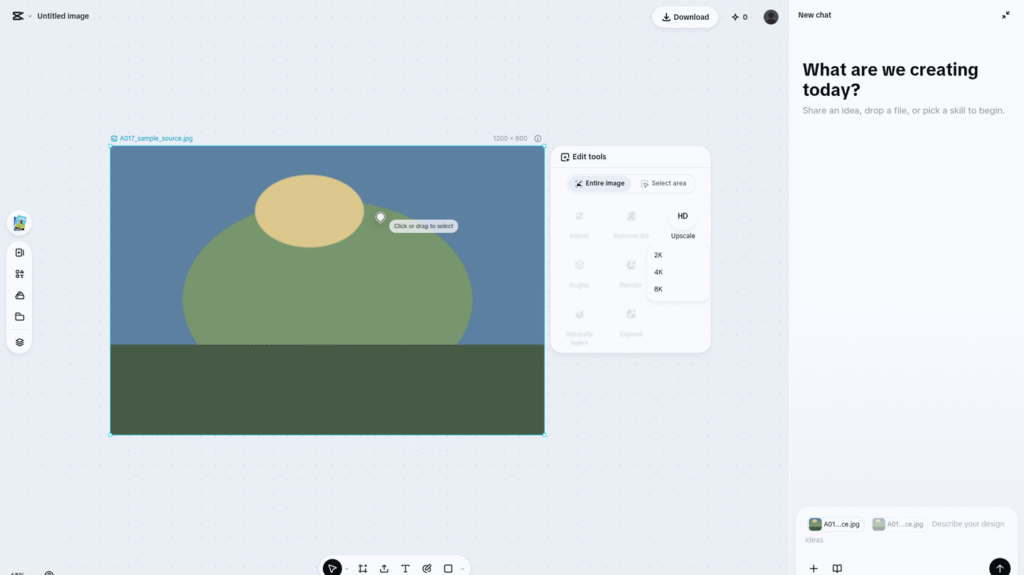
An upscaler predicts missing detail, and on faces that prediction can change the shape of eyes, mouths or noses, or invent hair and eyelashes. To upscale a portrait while preserving facial detail, keep the process controlled:
- Duplicate the original.
- Crop to the final composition first.
- Decide the size you actually need, rather than the biggest possible.
- Apply a single upscale pass.
- Compare the face in the original and the result at matching size.
- Zoom into the eyes, mouth and hairline.
Ask someone who knew the person to look at the result. If they say it does not quite look like them, go back to a smaller enlargement or a lighter setting.
Black-and-white and faded colour photos
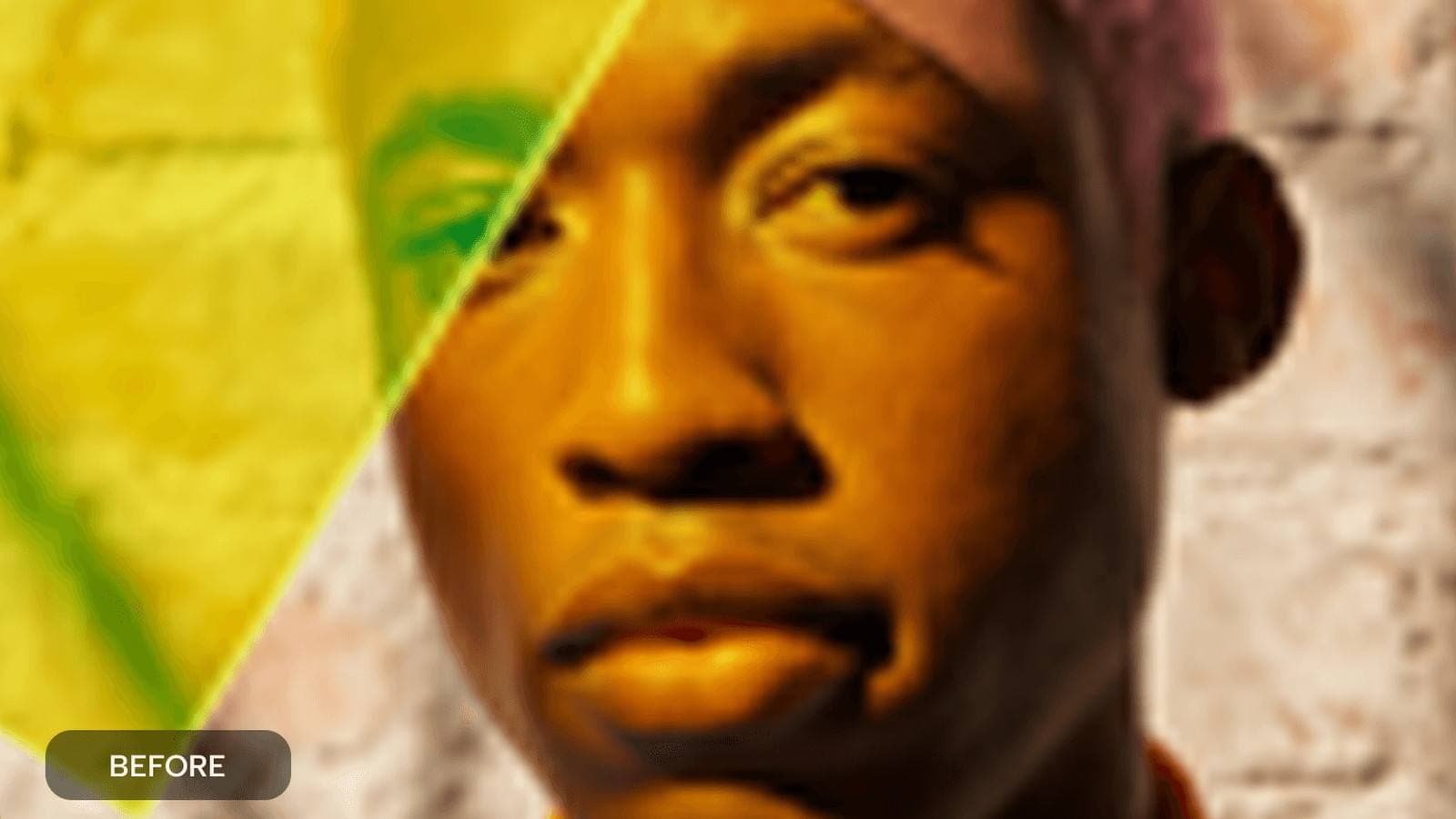
Old prints often have a colour cast, such as a yellow or magenta tint from age. A gentle enhancement may balance this, but be careful. Some of that warmth is part of the photo’s character and era. Compare the result with the original and keep the version that feels most true to the moment. For black-and-white photos, focus on clarity and grain rather than colour, and avoid tools that add colour unless you clearly want a separate, colourised copy.
What AI cannot do
It is important to keep expectations realistic. AI cannot reliably restore detail that was never captured. If a face is badly blurred, severely damaged or only a few pixels wide, any “restoration” will mostly be invention. For heavily damaged prints, a professional photo restorer may be the better choice, since they can repair tears and stains while carefully preserving likeness.
Share and store with care
Once you are happy with the results:
- Keep the original, the enhanced version and any upscaled prints in clearly named folders.
- Back up the folder in at least two places.
- When sharing with family, mention that the photo has been enhanced, so future generations know which version is the original.
A simple family photo routine
- Scan or find the best original.
- Save an untouched copy.
- Enhance gently and compare.
- Upscale only if needed, protecting faces.
- Export at the size you need for print or sharing.
- Back everything up.
Frequently asked questions
Can AI restore very old, damaged photos?
It can reduce grain and improve clarity, but it cannot reliably repair heavy damage or recover lost detail. Severe damage may need professional restoration.
Will AI change my relative’s face?
It can if settings are too strong. Use gentle enhancement, upscale only as much as needed and compare faces with the original closely.
What resolution should I scan old prints at?
Scan at a high resolution so you have plenty of detail to work with. Check your scanner’s settings and keep the full-size scan as your master.
Final thoughts
Old family photos deserve care, not heavy processing. Start with a good scan, enhance gently, protect faces when upscaling and always keep the originals safe. The goal is not a perfect picture. It is a clearer view of a real moment and the people in it.